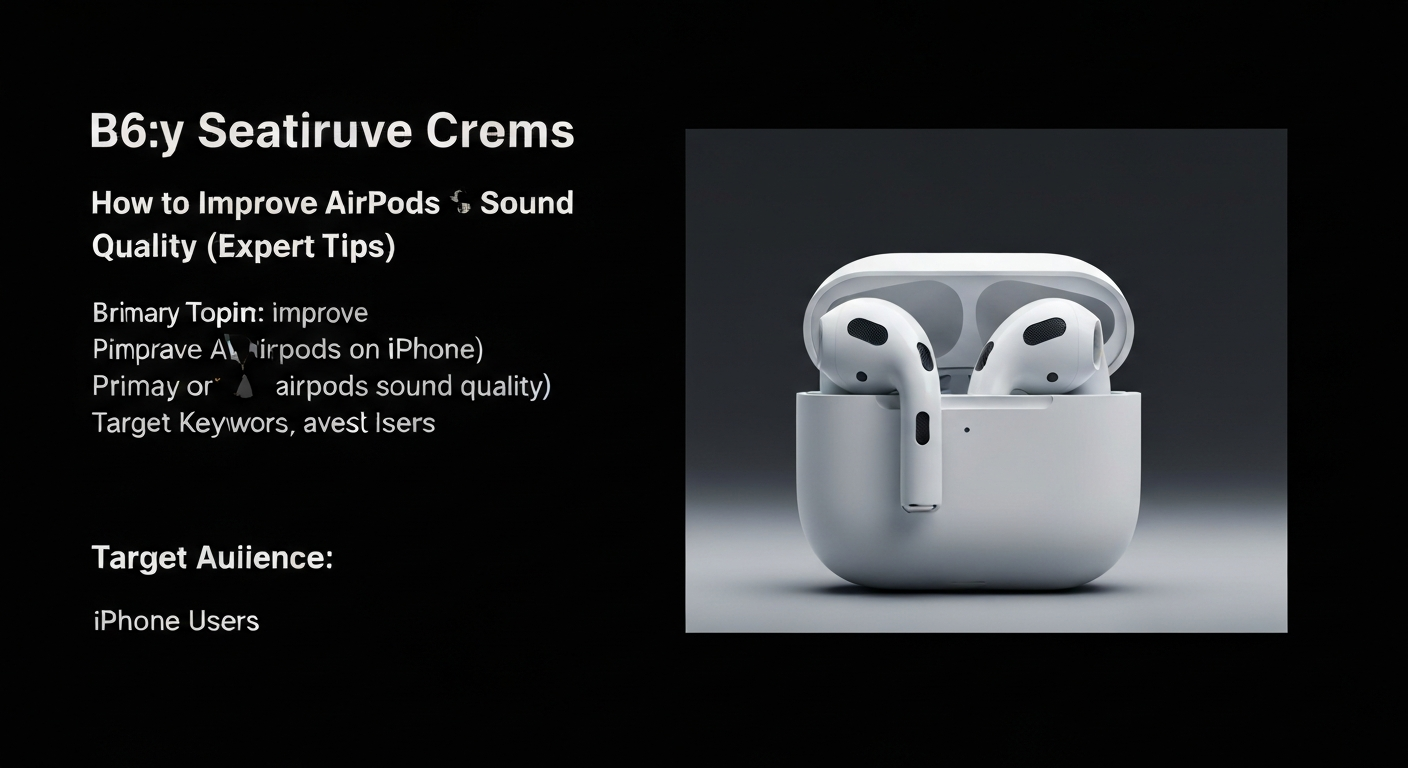
How to Improve AirPods Sound Quality on iPhone (Expert Tips That Actually Work)
If you’re trying to improve AirPods sound quality on iPhone and you’ve already done the obvious stuff (reconnect, crank the volume, switch songs)… you’re not alone.
Most “fixes” online are either too generic or they quietly make your AirPods sound worse—harsh highs, bloated bass, weird Spatial Audio, or that “underwater” muddy feeling.
Here’s the good news: there are a few iPhone settings that genuinely help, and the best one is hidden in Accessibility. If you do these in the right order, you can usually get a real, noticeable boost in clarity and balance—without buying new earbuds.
Quick Answer (Do This First)
To improve AirPods sound quality on iPhone, start by confirming a proper seal/fit (especially with AirPods Pro), then turn on Headphone Accommodations and try Balanced Tone for clearer mids and smoother overall sound. After that, set up Personalized Spatial Audio (if supported) and enable Sound Check to reduce harshness between tracks.
Before You Touch Any Settings: Fix the Fit (This Is the Foundation)
If you’re using AirPods Pro, your ear tip seal matters more than any EQ or “hack.” A poor seal doesn’t just reduce bass—it can make everything sound thin, splashy, and inconsistent, and it also weakens noise cancellation.
Run the Ear Tip Fit Test (AirPods Pro models)
Path: Put in AirPods Pro → open the case near iPhone → go to Settings → tap your AirPods → find Ear Tip Fit Test.
- If it says adjust or try a different tip size, do that first.
- Even one ear with a weak seal can make music sound “off-center” or muddy.
Real-life check: If bass changes a lot when you lightly press an AirPod inward, your seal isn’t stable yet. Fix that before anything else.
The #1 iPhone Setting to Improve AirPods Sound Quality: Headphone Accommodations
This is the setting most people miss—and it’s the closest thing to a system-wide hidden EQ on iPhone. It affects audio across apps (not just Apple Music), and for many people it’s the biggest “wow” improvement.
How to enable it (step-by-step)
Path: Settings → Accessibility → Audio & Visual → Headphone Accommodations → turn it ON.
Which preset should you pick?
- Balanced Tone (best starting point): improves overall balance and clarity without making the sound sharp.
- Vocal Range: great for podcasts, dialogue, YouTube voices, and calls—pushes intelligibility forward.
- Brightness: can add detail, but can also make “S” sounds (sibilance) more aggressive on some tracks.
My practical recommendation: Start with Balanced Tone for 24 hours. If vocals still feel buried, switch to Vocal Range. Only use Brightness if your audio feels dull and you mainly listen at lower volumes.
Fine-tune without ruining the sound
Inside Headphone Accommodations, you can adjust how strong the effect is. Keep it moderate.
- If your AirPods start sounding “processed,” back it down.
- If one side feels louder, use the Balance slider (still in Accessibility audio settings) instead of guessing with fit.
AirPods Sound Settings That Help (and When to Use Them)
1) Personalized Spatial Audio (supported models only)
Personalized Spatial Audio won’t magically “upgrade” fidelity, but it can make positioning feel more natural and improve separation—especially for movies, Dolby Atmos content, and live recordings.
Path: Settings → your AirPods → Spatial Audio → Personalize Spatial Audio (takes ~2 minutes).
When it’s worth it: If Spatial Audio feels weird, distant, or “hollow,” personalizing often makes it click.
2) Adaptive Audio vs Noise Cancellation (AirPods Pro/Max supported)
If your AirPods sound great at home but messy outside, the environment is part of the problem. Wind, traffic, and voices change what you perceive as “good sound.”
- Adaptive Audio: best for everyday use—more natural, adjusts to surroundings.
- Noise Cancellation: best when you want full focus and consistent bass response.
- Transparency: best when you need awareness; sound may feel lighter because you’re hearing the real world too.
Tip: If music feels thin outdoors, try switching from Transparency to Adaptive/Noise Cancellation and replay the same 20 seconds of a song.
3) Sound Check (surprisingly useful for harshness)
Sound Check normalizes loudness across tracks. The annoying part is you may need to turn your volume up afterward—but it can reduce that “too sharp / too boomy” effect across mixed-quality songs.
Path (Apple Music): Settings → Apps → Music → Sound Check → ON
- Helps if your AirPods feel aggressive on modern, loud masters.
- Nice for long listening sessions because it reduces “volume whiplash.”
4) Late Night (best for dialogue and low-volume listening)
If you listen at low volume (office, bed, commuting) and everything sounds “flat,” the Late Night setting can make quiet details easier to hear without blasting peaks.
Path: Control Center → tap/hold Now Playing → Audio Adjustments (or your playback options) → enable Late Night if available.
Best for: podcasts, Netflix/YouTube dialogue, audiobooks, late-night music listening.
Apple Music EQ vs Headphone Accommodations (What’s the Difference?)
This is where people get confused with airpods sound settings.
- Headphone Accommodations works more broadly (system-level) and is often more impactful.
- Apple Music EQ only affects Apple Music playback (and other apps have their own EQ if they offer it).
If you want one change that helps everywhere: prioritize Headphone Accommodations first.
If you still want to try Apple Music EQ
Path: Settings → Apps → Music → EQ
- If your sound is muddy: try a lighter EQ (avoid heavy bass boosts).
- If vocals are buried: choose a vocal-forward EQ option if available.
Important: Small EQ changes can quickly make AirPods sound “fake.” If you enable EQ and Headphone Accommodations at the same time, you may end up over-tuning.
The iOS Atmos / Spatialize Stereo “Bug” That Can Make AirPods Sound Worse
If you’ve ever thought, “My AirPods suddenly sound wrong and I didn’t change anything,” this might be it.
On some iOS versions, there’s a known issue where Atmos-available tracks behave strangely when Atmos is turned off, causing Spatialize Stereo to feel inconsistent or broken.
What to do if Spatial Audio sounds off
- Turn off Dolby Atmos in Music settings.
- Also disable Download in Atmos (if you use downloads).
- Test with a track that is not available in Atmos format.
This is one of those rare fixes that instantly restores “normal” sound for some users—especially if everything started sounding hollow or phasey.
Use-Case Presets: Get Better Audio on iPhone Without Overthinking It
If you want better music (most people)
- Ear tip/seal check (Pro models)
- Headphone Accommodations: Balanced Tone
- Optional: Sound Check if tracks feel harsh
- Optional: Personalized Spatial Audio if you like Spatial
If you mainly listen to podcasts/audiobooks
- Headphone Accommodations: Vocal Range
- Late Night (especially at low volume)
- Balance slider if voices feel “pulled” to one side
If you want better audio on iPhone for commuting/noisy places
- Fix seal first (seriously)
- Noise Cancellation for maximum consistency
- Or Adaptive Audio for a more natural all-day experience
When Nothing Works: Why Your AirPods Still Sound Bad
If you’ve tried everything and you’re still not happy, the issue is usually one of these:
- Seal problems (most common with AirPods Pro): your fit is “okay” but not stable.
- Atmos/Spatial conflict: Spatialize Stereo feels strange on Atmos-available tracks.
- Expectations vs model limits: some AirPods models simply don’t have the same tuning/features as Pro/Max.
- Over-processing: you stacked too many changes (EQ + accommodations + spatial) and the sound got unnatural.
If you want a clean reset: turn off EQ, turn off Sound Check, set Headphone Accommodations to OFF, then re-enable only Balanced Tone and test again. One change at a time.
AirPods Model Differences (What Settings You Actually Get)
Not every AirPods model supports every feature. Here’s the practical takeaway:
- Headphone Accommodations works on most modern AirPods and is the #1 universal improvement.
- Personalized Spatial Audio, Adaptive Audio, and fit tests are more of a “Pro/Max advantage.”
If you’re on standard AirPods (non-Pro) and you’re chasing deeper bass + cleaner isolation, that’s often where a Pro upgrade makes a real difference.
Product Picks (Optional Upgrades That Actually Improve Sound)
You don’t need to buy anything to get a noticeable improvement—but if your main problem is fit, isolation, or you want a bigger jump than settings can provide, these are the upgrades that tend to feel worth it.
Best for most iPhone users: AirPods Pro (latest model)
- Pros: best mix of sound + noise cancellation + fit/seal customization
- Cons: some people dislike in-ear tips
- Who it’s for: commuters, frequent listeners, anyone frustrated by inconsistent sound
Tip: If you’re constantly tweaking airpods sound settings just to hear bass or block noise, you’re exactly the person Pro models are designed for.
Best for comfort (non-in-ear): standard AirPods (latest)
- Pros: comfortable, easy all-day wear
- Cons: less isolation, less “locked-in” bass because there’s no seal
- Who it’s for: office, calls, casual listening
Best premium listening: AirPods Max
- Pros: big, rich sound and excellent noise cancellation
- Cons: expensive and not as portable
- Who it’s for: home/desk listening, flights, people who want the biggest upgrade
If you want, you can add your affiliate links like this: Check today’s price for AirPods Pro / See AirPods Max deals (place these right after the model that matches your audience).
FAQs
Can you actually improve AirPods sound quality with iPhone settings?
Yes—usually a noticeable but realistic bump (often around “this is cleaner and less harsh,” not “brand-new headphones”). The biggest win for most people is Headphone Accommodations plus a proper seal on AirPods Pro.
What are the best AirPods sound settings on iPhone?
Start with Headphone Accommodations → Balanced Tone. Then consider Sound Check if music feels harsh, and set up Personalized Spatial Audio if your model supports it.
Why do my AirPods Pro sound muddy or too bass-heavy?
The most common reason is a weak seal or wrong ear tips. After that, try Sound Check and avoid stacking too many EQ-like settings at once.
Does Personalized Spatial Audio improve sound quality?
It improves positioning and separation more than raw fidelity. It’s most noticeable for movies, Atmos mixes, and spatial content.
Should I use Adaptive Audio or Noise Cancellation for better audio on iPhone?
Use Adaptive Audio for all-day “set and forget” listening. Use Noise Cancellation when you want maximum isolation and consistent perceived bass.
What’s better: Headphone Accommodations or Apple Music EQ?
Headphone Accommodations is usually better because it works system-wide. Apple Music EQ is fine, but it’s app-specific and easier to overdo.
Conclusion: The Fastest Way to Make AirPods Sound Better
If you only do three things to improve AirPods sound quality, do these:
- Fix the fit/seal (especially AirPods Pro)
- Enable Headphone Accommodations and start with Balanced Tone
- Set up Personalized Spatial Audio (if available) and use Sound Check if tracks feel harsh
If you try these and still feel underwhelmed, it may be less about settings and more about the model you’re using. In that case, upgrading to AirPods Pro is the most straightforward “real” audio improvement most iPhone users can make—better seal, better isolation, and more tuning options built in.
Next step: Enable Headphone Accommodations right now and test your favorite song for 60 seconds. If you hear cleaner vocals and less harshness, you’ve already won.